
One plugin update could wipe out your entire WordPress site, and with over 40% of the web running on WordPress, the stakes are high. In 2026, safeguarding your business's online presence isn't just smart—it's essential. Discover the comprehensive strategies for backing up your WordPress site, from automated solutions to manual methods, and learn why relying solely on your hosting provider's backups is a risky gamble. Don’t wait for disaster to strike; ensure your site can be restored in minutes, not days. Click to uncover the full guide!
QUICK ANSWERA complete WordPress backup includes both your site files (themes, plugins, media, configuration files) and your MySQL database (posts, pages, settings, user data). You can create backups using a dedicated plugin like UpdraftPlus, your hosting provider’s built-in tools, manually through cPanel or FTP with phpMyAdmin, or via command line with SSH and WP-CLI. The best practice is to automate daily backups, store copies in at least two off-site locations, and test your restore process on a staging site before you ever need it in an emergency. |
Key Takeaways
✔ A WordPress backup must include both your files AND your database. Missing either one means you cannot fully restore your site.
✔ Automated, off-site backups are the minimum standard. Storing backups only on the same server as your live site defeats the purpose.
✔ Your hosting provider’s backups should be a secondary safety net, not your primary strategy.
✔ Test your backups regularly on a staging site. A backup you have never verified is a backup you cannot trust.
✔ Backup frequency should match your site’s activity level: daily for blogs and business sites, real-time for e-commerce.
✔ For most business owners, professional website maintenance that includes managed backups costs less than a single recovery from an unprotected disaster.
One Bad Plugin Update Can Erase Your Entire Website
WordPress powers over 40% of all websites on the internet. That popularity makes it stable, well-supported, and endlessly flexible. It also makes it the single most targeted CMS for hackers, malware, and brute-force attacks. Add in the everyday risks of a failed plugin update, a hosting server crash, or an accidental file deletion, and the question is not whether something will go wrong with your WordPress site. The question is when.
For Las Vegas businesses, the stakes are higher than a generic small business blog. A restaurant that loses its website during a Friday night rush loses reservations. A law firm whose site goes down during a paid ad campaign wastes every dollar until it is fixed.Downtime is not an abstract risk. It is lost revenue, lost trust, and lost momentum.
A reliable backup strategy is the insurance policy that lets you recover from any of these scenarios in minutes instead of days. This guide covers every method available, compares the tools and their costs, explains how to verify that your backups actually work, and gives you a clear framework for choosing the right approach based on your site’s needs.
What a Complete WordPress Backup Actually Includes
Before choosing a method, you need to understand what a WordPress site is made of. Your site has two distinct parts, and you need both for a full recovery.
Part 1: Your WordPress Files
These are the physical files stored on your hosting server that make your website work.
They include:
- WordPress core files
- wp-admin
- wp-includes
- Root-level files such as wp-config.php
- Plugins
- All installed plugins are stored in:
- wp-content/plugins
- Themes
- Your active theme
- Any backup or unused themes
- Stored in:
- wp-content/themes
- Uploaded media
- Images
- PDFs
- Videos
- Documents
- Stored in:
- wp-content/uploads
- Configuration files
- Important files such as .htaccess
- These help control site behavior, redirects, and server rules
For most small business websites, the uploads folder is usually the largest part because it contains every image, PDF, video, or document ever added to the WordPress media library.
Part 2: Your WordPress Database
Your database stores the content, settings, and information that appear on your website.
It includes:
- Pages and posts
- All published, draft, and saved content
- User accounts
- Admins
- Editors
- Customers
- Other user roles and permissions
- Plugin settings
- Plugin configurations
- Saved plugin data
- Custom plugin options
- WooCommerce data, if applicable
- Orders
- Customer details
- Product settings
- Store-related information
- Form submissions
- Contact form entries
- Lead form data
- Other submitted information
- Navigation menus
- Header menus
- Footer menus
- Custom menus
- Widget and site settings
- Sidebar widgets
- Footer widgets
- Site-wide WordPress options
The database and files work together:
- Without the database, your website files have no content to display.
- Without the files, your database has no structure, theme, plugins, or media to display properly.
- A complete WordPress backup needs both the files and the database.
CRITICALThe most common backup mistake is downloading your files through FTP and assuming you are done. An FTP download does NOT include your database. You must export your database separately through phpMyAdmin, WP-CLI, or a plugin that handles both components automatically. |
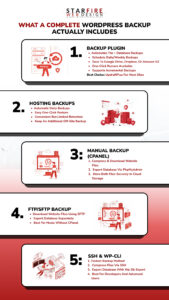
Method 1: WordPress Backup Plugins
Backup plugins are the most popular approach because they automate the entire process from inside your WordPress dashboard. A good plugin will package both your files and database into a single archive, run on a schedule you define, and send the backup to an off-site cloud storage location automatically.
What to Look for in a Backup Plugin
✔ Full site backup that includes both files and database in a single operation.
✔ Automated scheduling so backups run without manual intervention.
✔ Off-site storage integration with services like Google Drive, Dropbox, Amazon S3, or the plugin’s own cloud.
✔ One-click restore that can rebuild your site from a backup without command-line access.
✔ Incremental backup support so only changed files are processed after the initial full backup, which reduces server load and storage use.
How to Set Up a Backup Plugin
- Log in to your WordPress dashboard
- Go to Plugins
- Click Plugins
- Then click Add New
- Install the backup plugin
- Search for your preferred backup plugin
- Click Install Now
- Then click Activate
- Open the plugin settings
- Go to the backup plugin settings page from your WordPress dashboard
- Set your backup schedule
- Use daily database backups
- Use weekly full-site backups
- This is a good default setup for most business websites
- Connect cloud storage
- Choose your storage option, such as Google Drive, Dropbox, or another cloud platform
- Sign in and authorize the connection
- Run a manual backup
- Start your first backup manually
- This helps confirm the plugin is working correctly
- Check the backup files
- Download the backup
- Make sure it includes:
- Website files
- Database export
- Confirm everything is complete
- Check that the backup file is not empty or broken
- Make sure both the files and database are included
Backup Plugin Comparison
| Plugin | Free Tier | Paid Plans | Off-Site Storage | Real-Time | Best For |
| UpdraftPlus | Yes, full backup + schedule | From $70/year | Google Drive, Dropbox, S3, more | No | Most small business sites |
| Jetpack VaultPress Backup | No free backup | From $4.95/month | Jetpack Cloud (automatic) | Yes (paid) | WooCommerce and high-traffic sites |
| BlogVault | No free tier | From $89/year | BlogVault Cloud (automatic) | Yes (paid) | Agencies managing multiple sites |
| BackWPup | Yes, basic scheduling | From $69/year | S3, Dropbox, FTP | No | Budget-conscious site owners |
| Duplicator | Yes, manual backups | From $49.50/year | Google Drive, Dropbox, S3 | No | Site migrations + backups |
| All-in-One WP Migration | Yes, export only | From $69/year | Cloud extensions (paid) | No | Simple export and migration |
UpdraftPlus is the most widely used free option and handles the needs of the majority of small business WordPress sites. For e-commerce sites or businesses where losing even an hour of data would cause real financial harm, Jetpack VaultPress Backup’s real-time capability is worth the monthly cost.
Method 2: Your Hosting Provider’s Backup Tools
Most reputable hosting providers include automatic daily backups as part of their service. These backups typically cover both files and database and are accessible through your hosting control panel with a one-click restore option. Managed WordPress hosts like WP Engine, Kinsta, Flywheel, and SiteGround offer built-in backup systems that run automatically.
Hosting backups are convenient, but they should not be your only line of defense. The limitations are real:
✔ Most hosts retain backups for only 14 to 30 days. If you discover a problem that started five weeks ago, your host backup may not go back far enough.
✔ Backups are typically stored on the same server infrastructure. A catastrophic server failure could take out your live site and your backup simultaneously.
✔ Many hosting agreements include fine print stating that backups are provided on a best-effort basis and that the host does not guarantee their availability or integrity.
✔ If your host experiences an outage, you may not be able to access your backup when you need it most.
Use your hosting backup as a convenient secondary layer, not as your entire strategy. Pair it with a plugin or manual method that stores copies off-site.
Method 3: Manual Backup via cPanel and phpMyAdmin
If your hosting account uses cPanel, you can create a complete manual WordPress backup in two main steps.
Step 1: Back Up Your Website Files
- Log in to your cPanel account.
- Open File Manager.
- Go to your website’s root directory.
- This is usually called public_html.
- Select all website files and folders.
- Click Compress to create a ZIP file.
- Download the ZIP file to your computer.
This ZIP file contains your WordPress files, including themes, plugins, uploads, and core files.
Step 2: Back Up Your Database
- Go back to your cPanel dashboard.
- Open phpMyAdmin.
- Select your WordPress database from the left sidebar.If you are not sure which database to choose, check the database name inside your wp-config.php file.
- Click the Export tab.
- Choose Quick export.
- Select SQL as the format.
- Click Go.
Your database file will download automatically.
Step 3: Store the Backup Safely
After downloading both files:
- Keep the website ZIP file and database SQL file together.
- Save them in a clearly labeled folder.
- Include the backup date in the folder name.
- Upload a copy to cloud storage for extra safety.
A complete manual backup should include both the website files and the database.
Method 4: Manual Backup via FTP/SFTP
If your host does not use cPanel, you can download your files using an FTP client like FileZilla. Connect to your server using SFTP (port 22 or 2222, depending on your host), go to your root directory, and download all files and folders to a local backup directory. Always use SFTP over standard FTP because it encrypts data during transfer. For the database component, you still need phpMyAdmin or WP-CLI. An FTP download alone does not capture your database.
Method 5: Command-Line Backup via SSH and WP-CLI
For developers and technically confident users, SSH and WP-CLI offer the fastest and most flexible backup method. Connect to your server via SSH, go to your site’s root directory, and compress the files using a tar command. For the database, use the WP-CLI command wp db export, which creates a clean SQL dump of your database in a single step. Download both files to your local machine using SCP.
This method is powerful but requires comfort with the command line. For most business owners without a dedicated developer, a plugin or hosting backup is a better fit.
How Often Should You Back Up Your WordPress Site?
| Site Type | Backup Frequency | Why |
| Static brochure site | Weekly | Content changes rarely, risk of data loss is low |
| Business blog | Daily | New posts, comments, and form submissions accumulate daily |
| Service business site with forms | Daily | Lead form entries and appointment requests need daily capture |
| WooCommerce / e-commerce | Real-time | Every order, customer record, and inventory change must be captured instantly |
| Membership or subscription site | Real-time | User registrations, access records, and payments change constantly |
| High-traffic news or content site | Real-time or hourly | Comments, editorial changes, and ad configurations update frequently |
If you are unsure, default to daily. The cost difference between weekly and daily backups is negligible with modern tools, and the protection difference is enormous. One lost day of form submissions or customer orders can cost more than a full year of backup plugin fees.
The 3-2-1 Backup Rule for WordPress
The industry standard for data protection is the 3-2-1 rule: keep at least three copies of your data, store them on two different types of storage media, and keep at least one copy completely off-site. For a WordPress business site, this means one copy on your hosting server (your live site itself), one copy in cloud storage like Google Drive, Dropbox, or Amazon S3, and one copy on a local device like an external hard drive or a second cloud provider.
Most backup plugins handle the first two automatically. The third copy requires a manual step: periodically download your backup archive and store it locally. This protects you in the unlikely but possible scenario where both your server and your cloud storage become inaccessible at the same time.
What to Do After Restoring a WordPress Backup
Most backup guides stop at the restore step, but what you do immediately after a restore determines whether your site stays recovered. Here is a post-restore checklist:
✔ Test every critical page: homepage, service pages, contact forms, and any e-commerce checkout flows.
✔ Verify that all images and media load correctly. Missing files in wp-content/uploads are common after incomplete restores.
✔ Check your plugins page for any that deactivated during the restore and reactivate them one at a time.
✔ Clear all caching layers: your caching plugin, your hosting cache, and any CDN cache (Cloudflare, for example).
✔ If the restore was triggered by a security breach, immediately change all passwords: WordPress admin, database, FTP, hosting panel, and any connected API keys.
✔ Run a malware scan using a security plugin like Wordfence or Sucuri to confirm the restored version is clean.
✔ Submit your sitemap in Google Search Console to prompt recrawling of restored pages.
✔ Monitor your site for 48 hours after the restore to catch any intermittent issues.
Worth Knowing:The post-restore phase is where most DIY recoveries fall apart. Business owners restore the backup, see the homepage load, and assume everything is fixed. Then three days later they discover broken forms, missing images, or stale cache serving old content to visitors. Professional maintenance plans include post-restore verification as a standard step. |
Six Signs Your Backup Strategy Is Not Working
✔ You have never tested a restore. If you have not verified that your backup can rebuild your site on a staging environment, you do not have a backup strategy. You have a hope strategy.
✔ Your backups are stored only on the same server as your live site. A server failure takes out both.
✔ You are relying solely on your host’s backup with no independent copy. Read your hosting terms of service carefully.
✔ Your last backup is more than a week old. If your site updates daily, a week-old backup means a week of lost data.
✔ You are backing up files but not the database, or the database but not the files.
✔ Nobody in your organization knows how to restore from your backup. The backup exists but the knowledge to use it does not.
Why Most Las Vegas Businesses Should Not Manage Backups Themselves
Everything in this guide is technically accurate and actionable. A motivated business owner can set up UpdraftPlus, configure Google Drive storage, schedule daily backups, and test a restore on a staging site. It is entirely possible to do this yourself.
The question is whether it is the best use of your time, and what happens when something actually goes wrong.
When a Las Vegas restaurant owner’s site crashes at 7 PM on a Saturday, they are not thinking about wp-config.php and phpMyAdmin exports. They need their site back online immediately, and they need someone who restores WordPress sites regularly, not someone reading a tutorial for the first time under pressure.
Professional website maintenance plans handle backups as one part of a complete protection system that includes automated daily backups to off-site storage, regular backup verification and restore testing, security monitoring and malware scanning, plugin, theme, and core updates applied safely, uptime monitoring with immediate response to outages, and post-restore verification to ensure nothing is missed.
Stop Worrying About Your WordPress BackupsStarfire Web Design’s website maintenance plans include automated daily backups, off-site storage, security monitoring, plugin updates, and post-restore verification. We manage the entire technical layer so you can focus on running your business. |
Frequently Asked Questions
Q: How often should I back up my WordPress site?
At minimum, daily. If your site processes transactions, user registrations, or frequent content updates, real-time backups are the safer choice. The cost difference between weekly and daily backups with modern tools is minimal, while the data protection difference is significant.
Q: Where should I store my WordPress backups?
Follow the 3-2-1 rule: at least three copies, on two types of storage, with one completely off-site. A typical setup stores one copy on your server, one in cloud storage like Google Drive or Amazon S3, and one on a local drive. Never store backups exclusively on the same server as your live site.
Q: What is the difference between a file backup and a database backup?
Your files include WordPress core, themes, plugins, and uploaded media. Your database contains all your content: pages, posts, user data, settings, and e-commerce records. A complete backup requires both. If you only back up files, you lose all your content. If you only back up the database, your site has no themes or plugins to function.
Q: Will a backup plugin slow down my website?
A well-designed backup plugin should not noticeably affect site performance. Most modern plugins use incremental backups and process data in small chunks to minimize server load. Schedule backups for low-traffic hours to reduce any potential impact. Poorly coded or outdated plugins can cause issues, so choose established tools with strong review histories.
Q: What is the difference between real-time and scheduled backups?
Scheduled backups run at intervals you define, such as daily or weekly. Real-time backups capture every change as it happens, including new orders, comments, form submissions, and content edits. Real-time protection is essential for e-commerce stores and membership sites where losing even an hour of transaction data creates real business problems.
Q: Can I back up my WordPress site for free?
Yes. UpdraftPlus offers a full-featured free tier that includes scheduled backups and cloud storage integration. You can also perform manual backups using cPanel and phpMyAdmin at no cost. Free methods require more hands-on management and do not include real-time backup capability or automated restore testing.
Q: How do I know if my backup actually works?
The only way to verify a backup is to test a full restore on a staging site. Download your backup, set up a separate WordPress installation (many hosts offer one-click staging), import the files and database, and confirm that the site loads correctly with all content, images, and functionality intact. Do this at least once per quarter.
Q: What should I do immediately after restoring a backup?
Test all critical pages and forms, verify that media files load correctly, reactivate any plugins that deactivated during the restore, clear all caches (plugin, hosting, CDN), change all passwords if the restore was triggered by a security breach, run a malware scan, and submit your sitemap in Google Search Console.